Materials Subtab
Materials subtab collates all materials required for this works order.
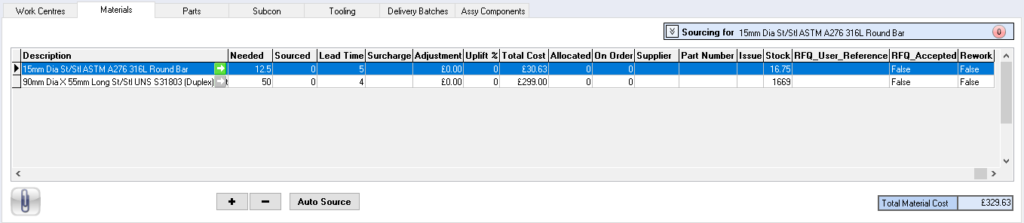
Specification – material specification
Description – material description
Needed – quantity of material required in total
On Order – quantity of material on order
Received – quantity of material received
Sourced – quantity of material sourced
Lead Time – lead time for supply of material
Surcharge – surcharge applied to material (e.g. carriage)
Adjustment – adjustment value
Uplift % – uplift percentage
Total Cost – total cost of material
Supplier name – supplier name of material
Part Number – part number on the material record
Issue – Part number issue number
Stock – quantity in stock
RFQ_User_Reference – RFQ number
RFQ_Accepted – Material accepted on the RFQ
Rework – Material required for rework
 – add new record
 – delete record
 – used to auto source material from stock, takes the oldest batch first
Works Order Material Window
Works Order Material window will open when the + add button is selected
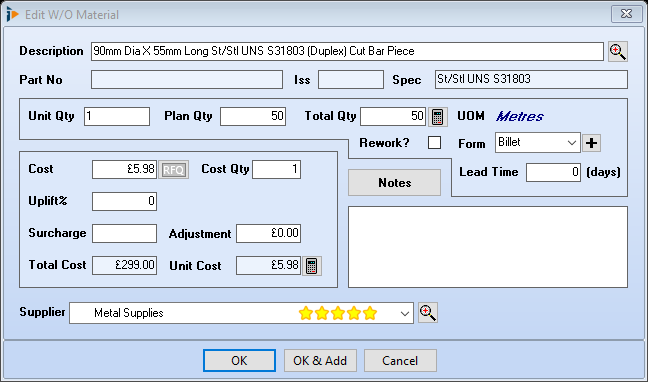
Description – description of material
Part No – part number of material
Iss – issue number related to part number
Spec – specification of material
Unit Qty – how much material is required to manufacture one unit?
Plan Qty – quantity to be manufactured
Total Qty – total quantity required
UOM – Unit of Measure
Form – bought in form applied to material
Lead Time (days) – lead time in days of normal supply
Cost – cost of material
Cost Qty – cost quantity of the material
Uplift% – percentage uplift applied to material
Surcharge – surcharge applied e.g. postage/carriage
Adjustment – adjustment of price applied
Total Cost – total cost of the material
Unit Cost – unit cost of the material
Notes – notes applicable to this material
Supplier – default supplier against this material
 Recalculate button
OK – saves and closes window
OK & Add – saves and opens material picking list
Cancel – closes window no record saved
Sourcing Material
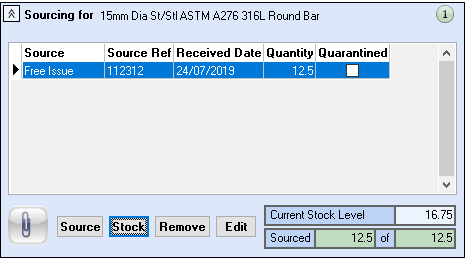
To source material against the works order select the Sourcing for drop down box; the relevant content of the drop down is dependent on the highlighted material within the table
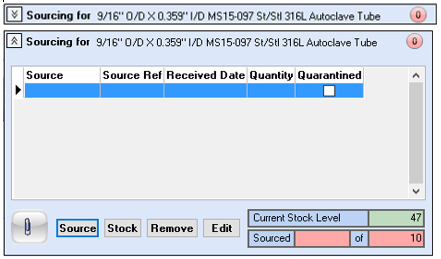
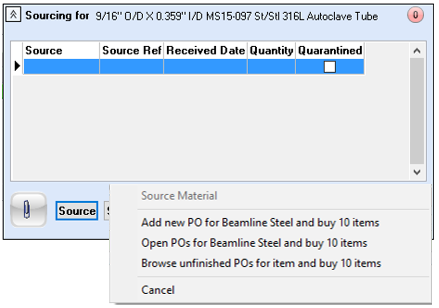
Source – selecting the source button will open a mini menu where further options are displayed relating to how this material is to be sourced, i.e. through a purchase order
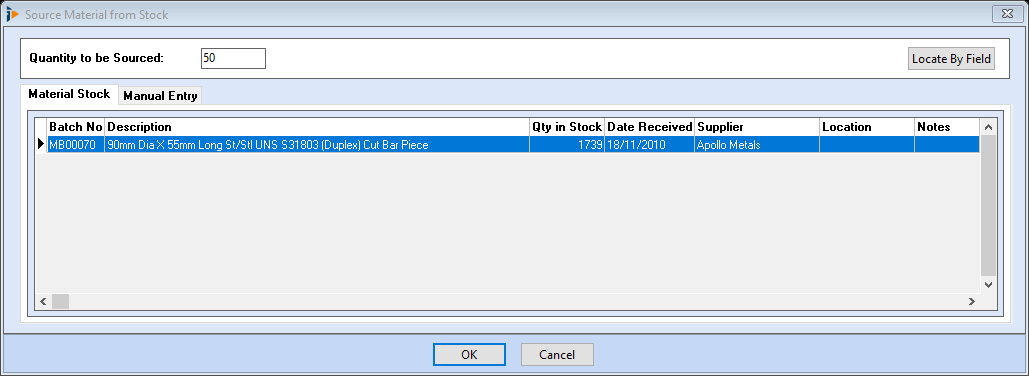
Stock – selecting the stock button will open the Source Materials from Stock window where all available levels of stock will be displayed. Select the required batch.
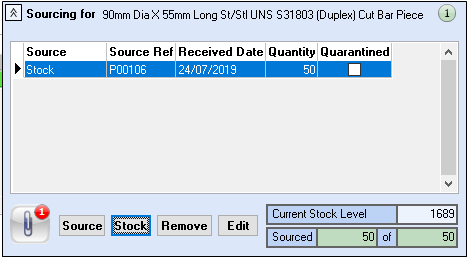
Sourcing will now show for this material record including any attached documents, indicated by the red balloon on the Document link button.
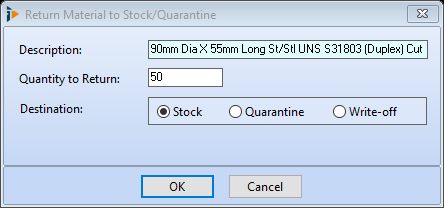
Remove – select this to remove the sourcing (stock), indicate where the material has to go by selecting Stock, Quarantine or Write-off
Edit – use this button to edit the material record detail if required
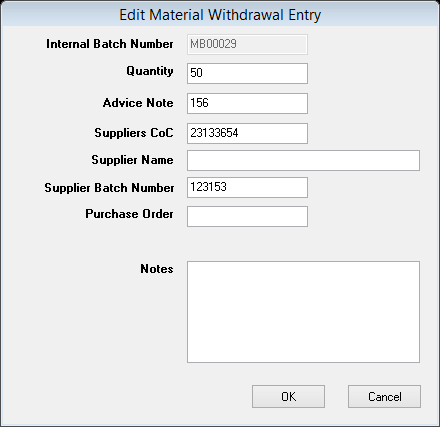
Free Issue Materials
When sourcing free issue material, it is possible to assign the traceability information
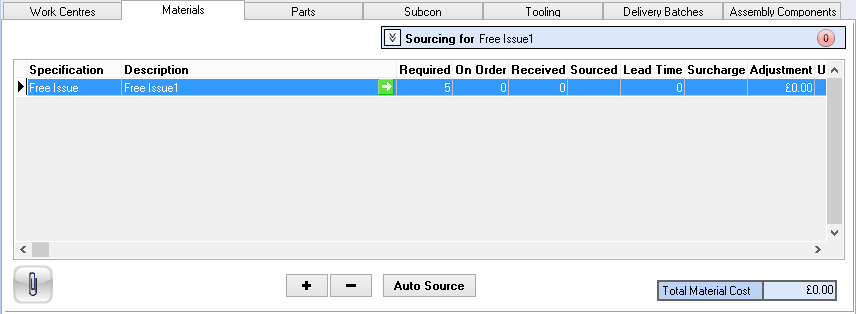
Add a material line, in the above illustration Free Issue1 has been used. Select the sourcing button, then Stock to open the Source Material from Stock window.
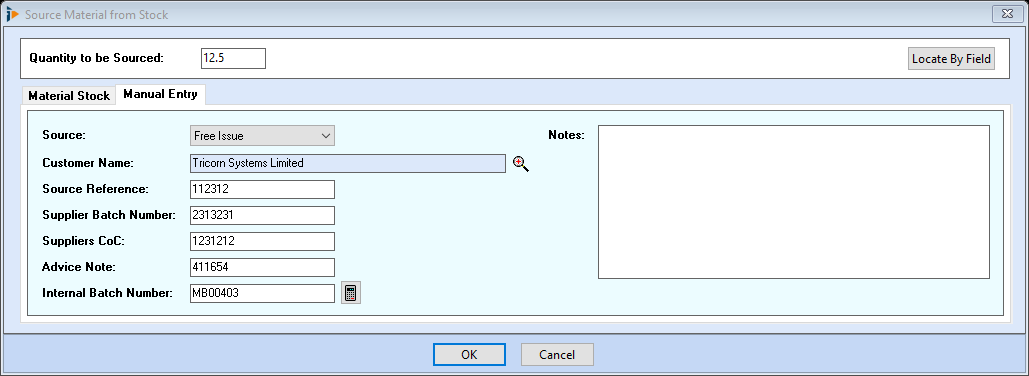
Select the Manual Entry tab, in the drop down select Free Issue, enter all relevant information in the fields below. Using the looking glass button select the customer name supplying the goods and the calculate button to insert an Internal Batch Number. Notes relating to this entry can be inserted in the free type field. All information will appear on a Certificate of Conformity as required.