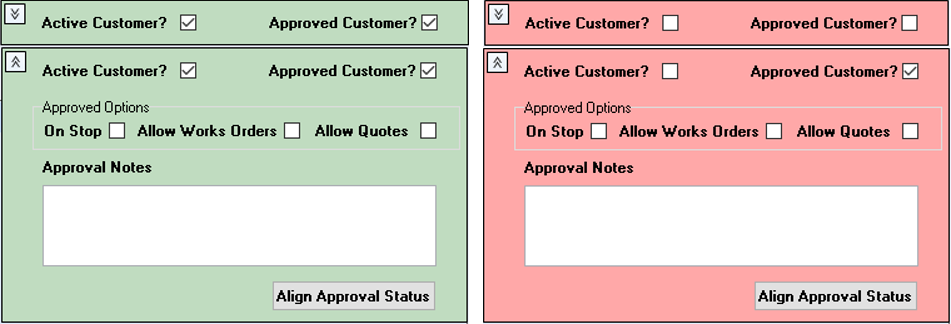
All new accounts will be automatically activated and approved, however, there are times when a customer needs to have their status changed. Select the Edit button to release the window for adjustments to be made, use the chevron to open the status window.
Status
Active Customer – all currently active accounts will display in search options
Approved Customer – tick to indicate an approved customer account, non-approved customer accounts will be displayed in search options in red font
Approved Options
On Stop – puts customer account on stop, use this in relation with accounting software
Allow Works Orders – if customer account is on stop can still allow works orders to be created
Allow Quotes – if customer account is on stop can still allow quotes to be created
Approval Notes – additional information can be inserted in this text book
Select Edit  to change details
Select Save to save the entries
Deleting Customer Records
It is not possible to delete a customer record if there are any related records attached, even if loaded in error. Suggest these accounts are put at a status of Inactive and Not Approved, and when using the search list have the tick box for Search for Active Records Only ticked.
Contact Details
Use the + button to add contact details and – to delete contact detail
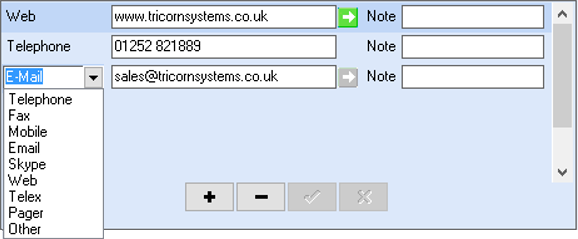
Use the drop down to select the type of contact. Enter all relevant information, email addresses entered here will be the default used on all email communications, unless there is an email address against the contact name used in orders.
Account Terms
Country – use the drop down menu to enter the international currency code
Industry – the industry the customer trades in can be stored here, these codes are created in Tools – Setup (admin rights required)
Terms – can enter terms for this customer e.g. 30 days. This information can be included on invoices thus each invoice reflects the individual customer terms
Credit – enter any customer credit limit
VAT No – customers VAT number can be inserted here, to include this number on printable documentation this will need to be activated by Tricorn Systems
Tax Code – when invoices are created they automatically default to the default tax/VAT rate as set up in Tools > Setup > VAT Details; to use another Tax Code/VAT Rate for a specific customer enter the relevant Tax Code this code will be used on any invoices created for that customer
Always Acknowledge Orders – tick box to indicate customer requires an acknowledgment of all orders, this is displayed in works orders and will subsequently create confirmation documentation