Detail & Schedule Tab
The detail tab within works orders will display additional details not included on the works order tab with the addition of scheduling information
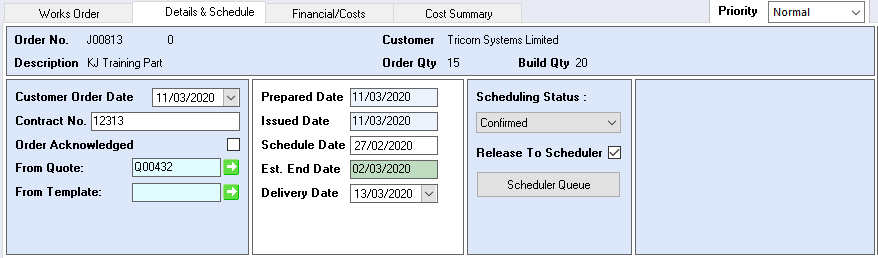
Customer Order Date – customer order date, this will be the date the customer sent the order
Contract No – contract number is the customer reference as used on a quotation, this could be different from the customer order assigned to the works order
Order Acknowledged – ticked if the works order has been acknowledged
From Quote – view and navigate to originating quotation
From Template – view and navigate to originating works order template or copied works order
Prepared Date – date this works order was prepared
Issued Date – date the works order was set to issued
Schedule Date – date assigned for this works order within the scheduler/planning board or capacity planning if the scheduler/planning board has not been purchased
Current End Date – current end date for this works order, displays red if the scheduling tool has identified this works order is not going to achieve its delivery date
Delivery Date – delivery date assigned to the works order, this date is used in KPI reporting and within the scheduler/planning board as date to achieve delivery
Scheduling Status: – confirmed or un-confirmed: confirmed indicates this job has been confirmed to the scheduler and un-confirmed enables the user to enter the job within the scheduler for capacity planning purposes without committing the job.
Release to Scheduler – tick to release to the scheduler, this places the works order on the scheduler queue window
Scheduler Queue – opens the scheduler queue window enabling the user to select which orders are to be sent to the scheduler
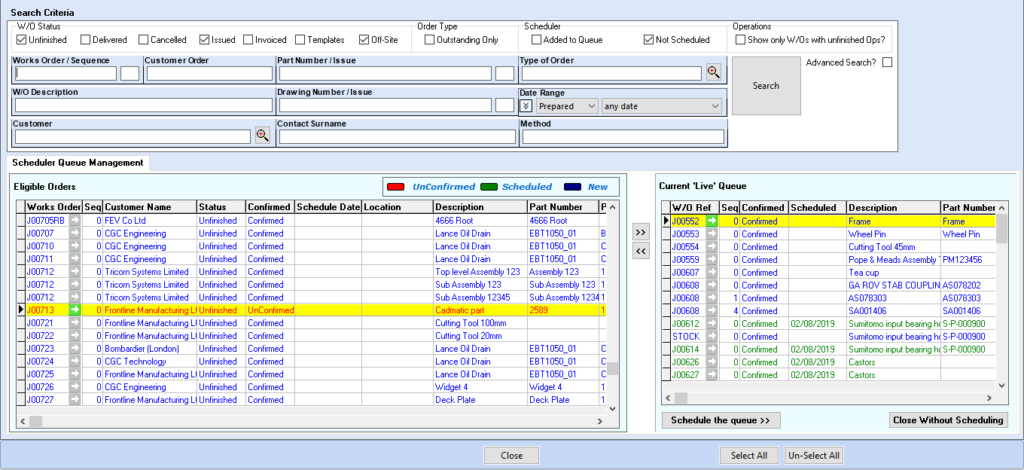
Scheduler Queue
The scheduler queue is based on the works order search window, all search functions are available see works order search.
All works orders placed in the right hand pane will be sent to schedule style software e.g. Scheduler or Tricorn Planning Board.