Work Centres Subtab
Work Centre subtab collates all operations required for this works order.
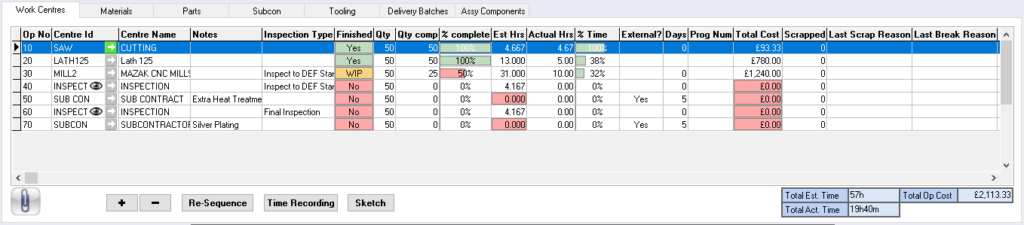
Op No – operation number
Centre ID – centre ID as assigned when creating work centres
Centre Name – centre ID Name
Notes – notes assigned to the operation
Inspection Type – Inspection types can be added to an operation in lieu of an inspection op. If SFDCe is in use these inspection types can be assigned to restrict the progress to another op requiring an inspector’s signature
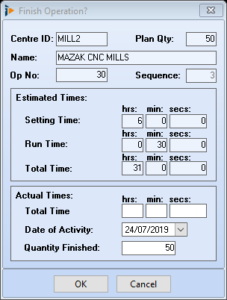
Finished – indicates the status of operation Yes/No/WIP, colour will change accordingly, Red for not started, Yellow work in progress and green for finished. Use the CTRL key and click on this field to open a mini time recording window, enter the actual time, date and quantity finished for this operation
Qty – quantity required for the works order
Qty comp – quantity complete
% complete – quantity complete in percentage terms
Est Hrs – estimated hours for this operation
Actual Hrs – actual hours posted for this operation
% Time – percentage of time actuals vs estimates
Total Cost – estimated total cost for this operation
Cost_Per_Hour – cost per hour for this operation
External? – is this operation a subcon operation
Days – number of days this operation is due to be external (subcon)
Prog Num – program number of the operation
Scrapped – how many have been scrapped, used in conjunction with SFDC-e
Last Scrap Reason – reason for scrapping, used in conjunction with SFDC-e
Last Break Reason – reason for last break, used in conjunction with SFDC-e
Set Mins – setting time for operation
Run Mins – unit run time for operation
Insp. Level – inspection level as assigned within work centres
Uplift % – percentage uplift for this operation
Op No – when looking within this view relates to the operation number
 – add new record
 – delete record
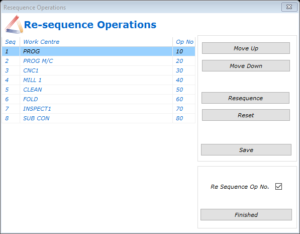
Re-sequence
Re-sequence button will re-sequence the operations as required. Select the operation to be moved, use the Move Up/Move Down buttons to reposition. Select Resequence to reset the sequence numbers, Save to save all changes, Finished to close window
Time Recording – see Time Recording
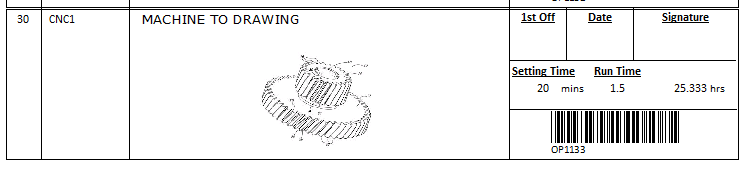
Sketch – a drawing can be added to the operation line, this must be in bitmap format.
Document link
Files can be attached to the group of operations.
Time Recording
Time recording is used to record all actual times against each operation. Select the Time Recording button to open the Times by Works Order window (this can also be opened through the Menu Bar – Process – Works Orders – Time Recording)
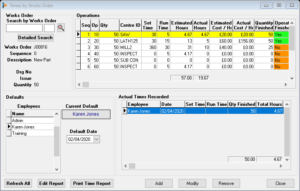
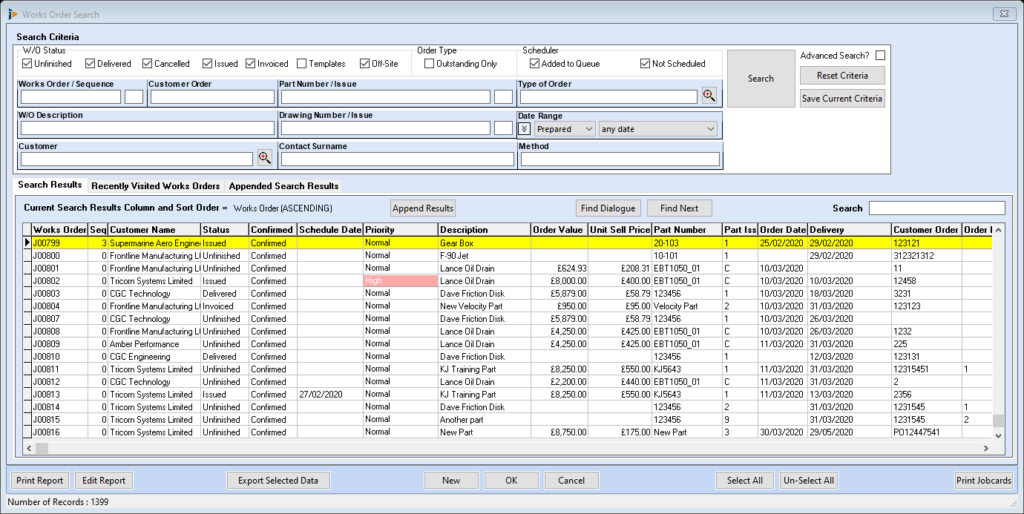
Works Order – Search by Works Order – use Detailed Search to open the works order search screen
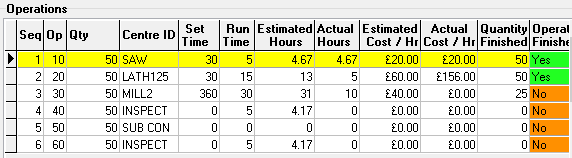
Operations – table listing all operations for the works order
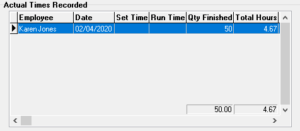
Actual Times Recorded – table listing all times posted against the operation
Defaults – Employees – list of all employees
Current Default – the current employee selected
Default Date – date all operations are to be posted against
Refresh All – refreshes the Times by Works Order window
Edit Report – contact Tricorn Systems for assistance
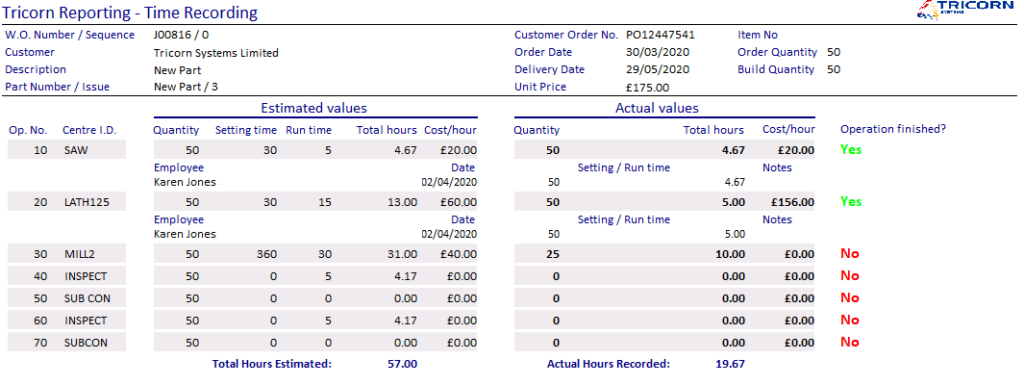
Print Time Report – prints a report indicating times posted against each employee on the selected works order
Add – add new record, opens the Enter Actual Employee Times window
Modify – use to modify an existing record
Remove – will remove the record from the Actual Times Recorded table
Close – close the window
Record Times against a Works Order
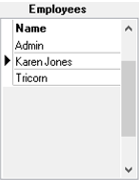
Highlight the employee to assign time against, a black triangle will indicate the selection.
Highlight the operation in the Operations table.
Select the Add button to open the Enter Actual Employee Time window, insert all required information. If the operation is finished ensure the box is ticked; to record any information relating to this operation notes can be included in the Notes field for future reference

Bar Code/SFDC-e – these times are viewable within this same program where corrections can be made if necessary
Times will be recorded in the Actual Times Recorded table, multiple entries against the same operation will be listed with accumulative time and quantity
Sketch
The sketch button enables a.bitmap drawing to be attached to the highlighted operation
Works Order Op Window
Works Order op window will open when the + add button is selected
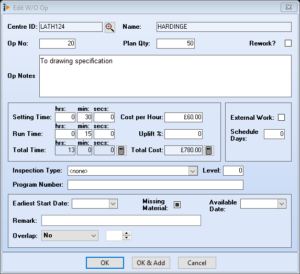
Centre ID/Name – centre ID and name as assigned when creating the work centre
 Centre ID looking glass button – used to change the operation
Op No – operation number
Sequence – sequence number of operation
Plan Qty – quantity to be manufactured
Op Notes – operation notes, it is possible to double click in this field to open a free type window where fonts can be changed, coloured etc.
Setting Time – setting time for operation, split into hours, minutes and seconds
Run Time – unit run time for operation, split into hours, minutes and seconds
Cost per Hour – cost per hour for operation
Uplift % – percentage uplift for this operation
Total Hours – total hours for this operation, indicated in hours, minutes and seconds. Calculator recalculates the total time
Total Cost – total cost for this operation. Calculator recalculates the total cost
External Work – is this operation a subcon operation? Tick if yes
Schedule Days – how many schedule days for this operation, can be populated from work centre
Inspection Level – inspection level as assigned within work centre
 Recalculate button
Program Number – machine program number of operation
Settings for use in Scheduler only
These settings will only appear if scheduler has been activated.

Earliest Start Date – set the earliest date the operation can realistically start
Missing Materials – if materials are not available can indicate using tick box
Available Date – linked to missing materials, a date can be set for when the materials can be available
Remark – enter any detail relating to the missing material
Overlap – can set the overlap by Free, Percent and Delay, use the up and down arrows to enter value
OK – saves and closes window
OK & Add – saves and opens work centre picking list
Cancel – closes window no record saved